
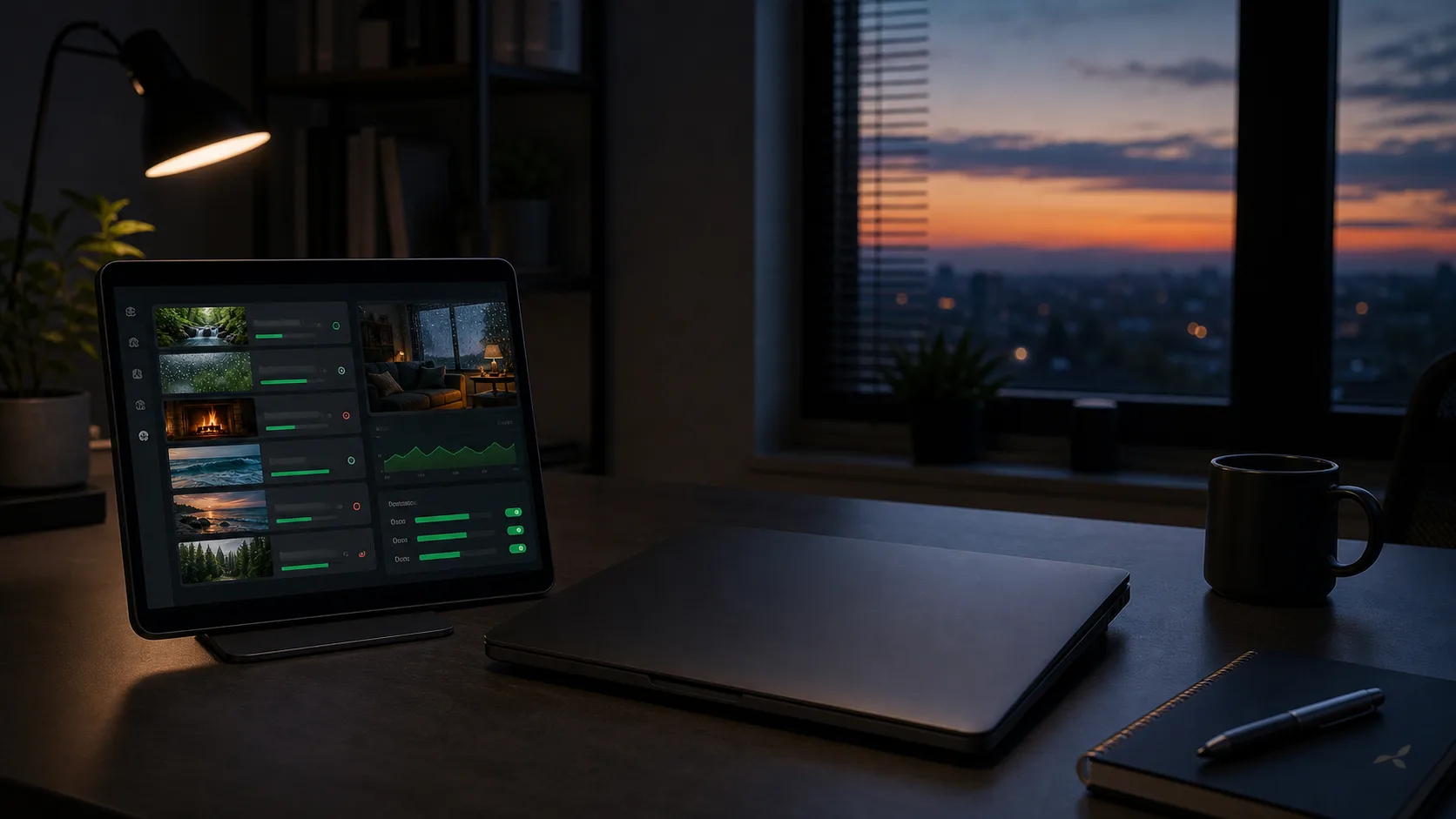
How to Run a 24/7 YouTube Live Stream Without Keeping Your PC On
You do not need to leave a desktop computer running beside you for every hour of a pre-recorded live stream. A cloud encoder can store your videos, assemble the playlist, and send the live feed to YouTube from a data center. Your PC is needed for setup, not for continuous broadcasting.
Why local 24/7 streaming is difficult
OBS is excellent production software, but an always-on local stream depends on much more than OBS. The computer must avoid sleep, updates and thermal problems. Your router must remain connected. Your upload speed must stay above the configured bitrate. A brief power or internet interruption can end the broadcast.
These risks are manageable for a live event where someone is watching the controls. They become inconvenient for a stream intended to run overnight, while you travel, or for many days at a time.
What moves to the cloud
With cloud streaming, the source files are uploaded to remote storage. A server-side encoder reads the playlist and sends a continuous RTMP or RTMPS feed to YouTube. Closing your browser or switching off your laptop does not stop that server process.
Step-by-step setup
1. Prepare a broadcast-ready library
Choose videos that can be watched repeatedly or in a programmed sequence: ambient scenes, educational lessons, podcasts, music you control, product demonstrations, worship content, conference recordings, or a curated channel archive. Remove long accidental gaps and normalize large differences in audio volume.
2. Create the destination in YouTube
In YouTube Live Control Room, create a stream and configure its title, description, thumbnail, audience, category, latency and visibility. Copy the stream key. Treat it like a password.
3. Upload videos to cloud storage
Upload your files to Looping Stream and wait for processing to finish. Processing checks and prepares media for the streaming workflow. Large files may take time to upload, especially when your internet connection has limited upstream bandwidth, but that bandwidth is no longer needed after the files are stored.
4. Build and test the playlist
Arrange the files in the intended order. Start with a short private or unlisted YouTube test. Check the beginning, audio, video quality, transitions, and the point where the final item returns to the first. This catches incompatible files before the public launch.
5. Start the production stream
Enter the YouTube stream key, start broadcasting, and confirm healthy input in Live Control Room. Once the remote stream is stable, you can close the Looping Stream page and switch off your computer.
Local PC versus cloud streaming
| Requirement | Local OBS | Cloud streaming |
|---|---|---|
| Computer stays on | Yes | No, after setup |
| Home upload used continuously | Yes | No |
| Scenes, cameras and live switching | Excellent | Usually limited |
| Simple pre-recorded playlists | Possible | Designed for it |
| Maintenance | PC, OS, encoder, network | Playlist and service monitoring |
| Direct infrastructure cost | Hardware and electricity | Subscription |
What cloud streaming does not remove
A remote server reduces dependence on your PC, but it does not make a stream maintenance-free. You should still check stream health, renew the service plan, keep destination credentials valid, respond to YouTube warnings, and replace content that is outdated or underperforming.
No provider can promise uninterrupted delivery under every circumstance. Platforms can reject a connection, stream keys can be reset, files can be malformed, and data centers can experience incidents. The practical goal is to remove avoidable single points of failure and make recovery easier.
Security and channel safety
- Use a unique account password and enable two-step verification where available.
- Never include a stream key in screenshots, support posts, videos, or shared documents.
- Rotate the key if another person no longer needs access or if it was exposed.
- Upload only content you are authorized to broadcast.
- Keep local masters and backups; cloud streaming storage should not be your only archive.
- Use accurate metadata. Do not present old footage as a real-time event if that could mislead viewers.
When keeping OBS is the better choice
Use OBS or another local production encoder when your broadcast depends on cameras, microphones, live guests, complex overlays, browser widgets, games, or real-time scene control. Cloud playlist streaming is strongest when the program is already recorded and the main need is reliable, continuous delivery.
You can also use both approaches for different shows: cloud streaming for the always-on channel and OBS for interactive events.
Frequently asked questions
Can I turn off my PC after starting the stream?
Yes, if the stream is running from a cloud server. Do not turn it off if OBS or another encoder on that PC is the source.
Will slow home internet affect the live stream?
It can make the initial upload slower. Once a complete file is stored and the cloud server is broadcasting it, the live feed no longer depends on your home upload connection.
Can a cloud stream run while I travel?
Yes. You should still have a way to access YouTube Studio and the streaming dashboard if the destination disconnects or content needs attention.
Is cloud streaming cheaper than leaving a PC on?
It depends on your hardware, electricity price, internet plan, required quality and subscription. Compare the full operational cost, not only the monthly software price.
Keep streaming after the laptop closes
Looping Stream is built for continuous pre-recorded playlists running from the cloud.
Explore cloud streaming without OBS