
How to Live Stream Pre-Recorded Videos on YouTube 24/7
A 24/7 YouTube live stream can turn a library of your own videos into continuous programming. The important part is not simply putting one file on repeat. A reliable setup needs compatible media, a stable encoder, a protected stream key, a sensible playlist, and regular monitoring.
How a pre-recorded YouTube live stream works
YouTube receives a live video feed from an encoder. That encoder can be software running on your computer, such as OBS Studio, or a cloud service that reads uploaded files and sends them to YouTube from a remote server. To viewers, both methods appear as a normal live broadcast.
The basic path is simple:
- You prepare videos that you own or have permission to broadcast.
- You create a stream in YouTube Live Control Room.
- You connect an encoder using the stream URL and private stream key.
- The encoder plays your files in sequence and sends a continuous feed.
- You monitor YouTube stream health and replace or reorder content when needed.
Method 1: stream from the cloud
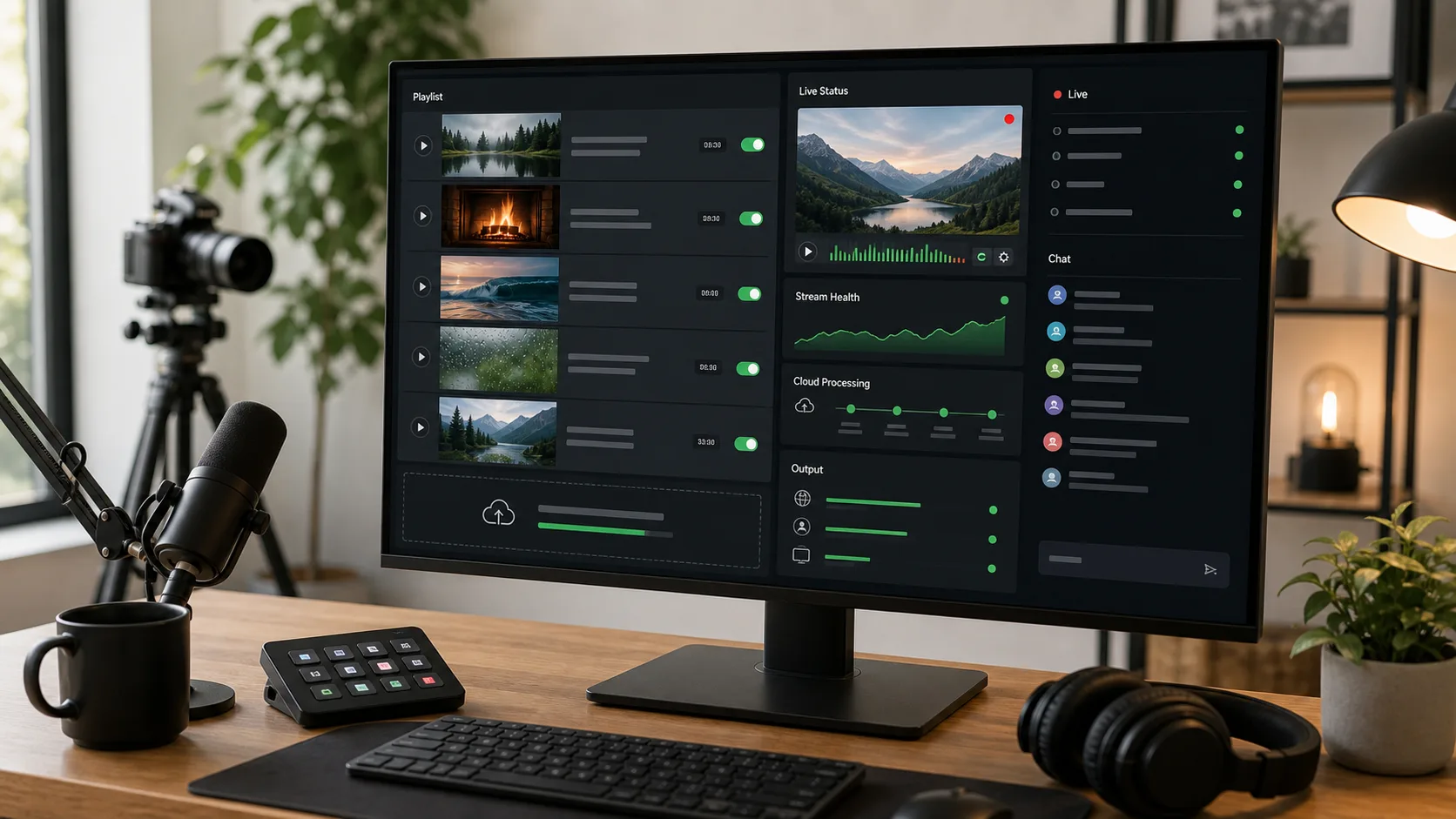
Cloud streaming is usually the simplest option for a long-running pre-recorded channel. Your computer is used to upload and configure the content, but it does not have to stay powered on after the stream starts.
Step 1: prepare your source files
Use a consistent resolution and aspect ratio across the playlist whenever possible. MP4 with H.264 video and AAC audio is a practical starting point. Check every file for missing audio, damaged frames, long black sections, and unexpected rotation before uploading it.
Step 2: create the YouTube stream
Open YouTube Studio, go to Live Control Room, and create or schedule a stream. Add an accurate title, description, category, audience setting, and thumbnail. Copy the stream key only when you are ready to connect the encoder.
Step 3: upload and build the playlist
In Looping Stream, upload your videos to cloud storage and wait until processing is complete. Add the files to a stream in the order you want viewers to see them. A playlist with several videos is easier to maintain than one extremely long render: individual items can be replaced without rebuilding the entire program.
Step 4: connect YouTube and start
Select YouTube as the destination, enter the stream key, and start the stream. Keep Live Control Room open during the first launch. Confirm that YouTube receives video and audio, that the resolution is expected, and that the stream health indicator remains stable.
Step 5: check the first complete loop
Watch every transition at least once. A stream may look healthy for the first video but fail when it reaches a file with a different codec, frame rate, or audio layout. The first full playlist cycle is the most useful test.
See the dedicated YouTube 24/7 streaming page for the cloud workflow and available plans.
Method 2: loop videos with OBS Studio
OBS Studio is a free, flexible local encoder. It is a good choice when you need scenes, overlays, browser sources, microphones, cameras, or live switching. The trade-off is that your computer and internet connection become part of the broadcast infrastructure.
- Install OBS Studio and create a new scene.
- Add a Media Source, select your video, and enable looping.
- For multiple files, use a VLC Video Source if VLC integration is available, or prepare scenes and switch them manually or with automation.
- In Settings > Stream, choose YouTube and enter the stream key.
- Match the output resolution, frame rate, bitrate, and keyframe interval to YouTube's guidance.
- Start streaming and verify the feed in Live Control Room.
Disable sleep and automatic restarts, use a wired connection where possible, and leave enough CPU or GPU capacity for stable encoding. A local setup is only as reliable as the computer, router, electricity supply, and upload connection behind it.
Recommended YouTube encoder settings
YouTube's official recommendations can change, so verify them before a major broadcast. The following H.264 starting points reflect YouTube guidance checked in June 2026.
| Output | Video bitrate | Audio |
|---|---|---|
| 720p at 30 fps | 4 Mbps | AAC, 128 Kbps stereo |
| 720p at 60 fps | 6 Mbps | AAC, 128 Kbps stereo |
| 1080p at 30 fps | 10 Mbps | AAC, 128 Kbps stereo |
| 1080p at 60 fps | 12 Mbps | AAC, 128 Kbps stereo |
Use constant bitrate (CBR), a two-second keyframe interval, progressive scan, and RTMPS when your encoder supports it. Avoid increasing bitrate simply because your connection is fast; consistency matters more than sending unnecessary data. See YouTube's current encoder settings.
24/7 stream reliability checklist
- Use only content and music you have the right to broadcast.
- Test every file before adding it to a production playlist.
- Keep resolution, frame rate, and audio format consistent.
- Do not expose the YouTube stream key; rotate it if it may be compromised.
- Check YouTube stream health after launch and after playlist changes.
- Use clear titles and thumbnails that accurately describe the broadcast.
- Keep backup media ready for replacement.
- Review YouTube policies instead of assuming that a 24/7 stream guarantees discovery or monetization.
Frequently asked questions
Can I stream a pre-recorded video as live on YouTube?
Yes. An encoder can send a pre-recorded file as a live feed. You are still responsible for rights, metadata, audience settings, and compliance with YouTube policies.
Does my computer need to stay on?
It must stay on when OBS or another local encoder is sending the stream. With a cloud streaming service, the remote server continues broadcasting after your upload and setup are complete.
Can I change videos without stopping the stream?
That depends on the encoder. A playlist-based cloud service can make routine content management easier, but you should still test transitions and avoid changing the item that is currently being processed.
Will a 24/7 stream increase my views?
Not automatically. Continuous availability can create more opportunities to be watched, but discovery still depends on useful content, viewer satisfaction, packaging, channel history, and platform policies.
Run your playlist from the cloud
Upload your own videos, build a continuous playlist, and stream to YouTube without keeping an encoding computer online.
Compare Looping Stream plans