
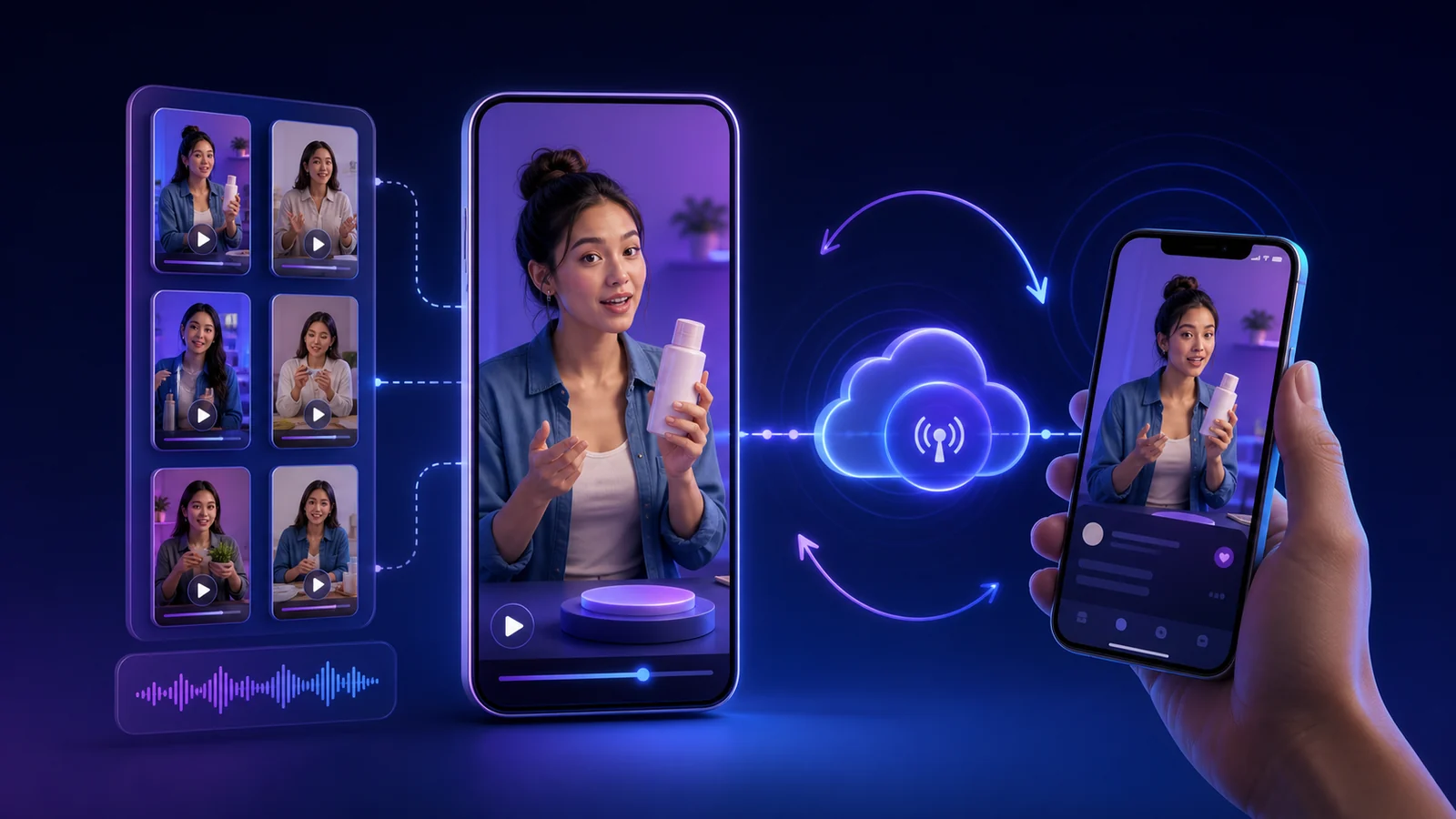
Vertical Pre-Recorded Live Streaming: Turn 9:16 Videos into a Cloud Broadcast
Vertical live streaming brings the familiar rhythm of Shorts, Reels, and TikTok-style video into a continuous broadcast. With pre-recorded clips, you can build the program carefully, run it from the cloud, and keep your computer free.
What makes a vertical live stream different
A vertical live stream is taller than it is wide. The usual canvas is 9:16, for example 1080 by 1920 pixels. On a phone, it can fill the screen without asking the viewer to rotate the device.
YouTube says eligible vertical live streams can be discovered while people browse Shorts and opened in a scrollable vertical live feed. That feed is available in the YouTube mobile app, not on tablets. This is an additional discovery surface, not a promise that every stream will receive traffic.
The viewing behavior is also different. A person can swipe away in a second, so the first frame must already make sense. A long intro, a distant subject, or tiny captions that work on desktop can feel empty on a phone.
Why vertical pre-recorded live is a good idea to test
Pre-recorded streaming does not make weak content interesting, but it does solve several practical production problems.
- Reuse a vertical library: Clips already made for Shorts, Reels, or TikTok can become a programmed live playlist instead of staying as isolated posts.
- Design every second: You can cut pauses, improve captions, balance sound, and check claims before anything reaches the audience.
- Create a mobile-first experience: Close framing, large details, and portrait composition use the phone screen more naturally than a landscape video with empty space.
- Build a repeatable program: A playlist can rotate tutorials, product views, recipes, performances, or visual loops in a deliberate order.
- Run from the cloud: After launch, the encoder works on Looping Stream servers. The browser can close and your own computer does not need to stay on.
Treat the format as an experiment. Compare different openings, playlist lengths, and content themes, then keep the combinations that viewers actually watch.
Successful examples and what they teach
The best-known vertical live examples are usually genuinely live, not pre-recorded. They still show which visual and programming choices work in a portrait feed.
Lana Rae and the creator format choice
In an official YouTube discussion, creator Lana Rae joined the platform team to talk about the choice between horizontal streams for a core audience and vertical streams for the Shorts feed. The practical lesson is simple: orientation is part of distribution and viewing context, not just a crop made at the end.
DJ AG and an instantly recognizable live show
DJ AG built a large social audience around street DJ sets and guest performers. The Guardian documented appearances by artists such as Skepta. His streams are not pre-recorded and are associated strongly with TikTok, but the visual lesson transfers: the subject is obvious immediately, the frame is close, and a new viewer can understand the show without an introduction.
Product, food, and tutorial loops
A hand demonstrating a product, a recipe moving from one clear step to the next, or a short phone tutorial all fit a portrait screen well. In a pre-recorded playlist, each clip can begin with the result or question, deliver one idea, and hand off cleanly to the next clip.
How to prepare vertical videos
A technically vertical file is not automatically a good mobile program. Build each clip for a person holding a phone.
- Start with a 9:16 master: Use a portrait canvas such as 1080 by 1920. Avoid stretching a horizontal export. Reframe the subject or create a dedicated vertical edit.
- Keep the subject large: Faces, hands, products, and key actions should be easy to read at phone size. Wide shots often waste the strongest part of the canvas.
- Protect the edges: Platform controls, chat, and captions can cover parts of the screen. Keep essential text and details away from the top, bottom, and extreme sides.
- Make the opening useful: Do not begin every clip with a logo animation. Show the result, movement, question, or main subject immediately.
- Use readable captions: Choose short lines, strong contrast, and a large type size. Check the final export on a real phone.
- Plan clean transitions: Avoid several seconds of black between files. Similar sound levels and intentional endings make the playlist feel like one channel.
- Add enough variety: One very short clip repeated for hours becomes obvious quickly. Mix several related clips or use a longer program that rewards staying.
Formats that fit pre-recorded vertical live
The strongest idea is usually one that can be understood at any entry point. A viewer may arrive in the middle of the playlist.
Product demonstration channel
Rotate close-up demonstrations, comparisons, use cases, care tips, and answers to common questions. Avoid pretending that stock or prices are changing live unless they really are.
Recipe or craft sequence
Show one compact process per clip, with the finished result visible early and each step framed tightly.
Fitness or movement library
Combine short exercises into a clearly labeled session. Include appropriate safety guidance and do not present recorded feedback as real-time coaching.
Music and visual loops
Pair portrait animation, artwork, or performance footage with audio you are allowed to stream. Looping Stream can also combine a visual playlist with a separate audio playlist.
Mobile tutorial channel
Phone features, app walkthroughs, language prompts, and quick educational lessons are naturally readable in portrait orientation.
Event or venue screen
Use backstage clips, artist introductions, sponsor-safe visuals, or highlights as a continuous companion stream, while clearly labeling recorded material.
How to launch it with Looping Stream
You do not need to keep OBS open or configure a local encoder. A simple launch looks like this:
1. Prepare the program
Export one or more portrait videos and check them on a phone. If audio is separate, prepare the tracks and confirm the broadcast rights.
2. Upload the files
Create a stream in Looping Stream, upload the vertical videos, and wait until processing is complete. Choose the video-only workflow or combine video and audio playlists when the program needs separate music.
3. Add the destination
Create the live stream on YouTube or another supported platform, then add the destination and stream key to Looping Stream. Keep the key private.
4. Arrange the playlist
Put clips in a deliberate order or enable shuffle when random rotation makes sense. Review the beginning and end of every file.
5. Start and verify
Launch the stream and open it on a phone. Check orientation, sound, captions, and the transition between clips.
A short checklist before launch
- The files are truly portrait and not a small horizontal video inside a vertical frame.
- The first frame communicates the topic without a long introduction.
- Important text is readable and clear of interface overlays.
- Sound levels are consistent across the playlist.
- The title or description makes the pre-recorded nature clear.
- All video, music, and visual rights cover live broadcasting.
- A phone test confirms the picture, sound, and transitions.
Frequently asked questions
Does a vertical stream automatically enter the Shorts feed?
No. YouTube says vertical live streams can be discovered while viewers browse Shorts, but eligibility and distribution are controlled by the platform. There is no guaranteed placement or audience size.
Can I stream an existing Short as a live loop?
You can use your own source file if you have the necessary rights. For a better viewer experience, build a varied playlist instead of repeating one very short clip indefinitely.
Do I need a 24/7 stream?
No. A focused program can run for a limited campaign, a product window, an event, or a recurring session. Choose a duration that matches the content and your platform rules.
Can the video and music be separate?
Yes. In Looping Stream you can use a video playlist and a separate audio playlist, which is useful for animation, ambience, and music-led formats.
Will the stream continue if I close my laptop?
Yes. Once launched, the encoder runs in the cloud. Your laptop and browser do not need to remain open.
Sources checked for this guide
Platform features change. These official and editorial sources were checked on July 27, 2026:
- YouTube Help: vertical live streams
- YouTube Help: getting started with live streaming
- YouTube Blog: creator discussion about vertical live
- The Guardian: DJ AG and street live streaming
Ready to test a vertical cloud stream?
Prepare your portrait clips, upload them once, and let Looping Stream run the playlist from the cloud.
Create your stream