
From your files to a live broadcast
- Activate a plan in Plans. Upload your files in Storage and wait for processing to finish.
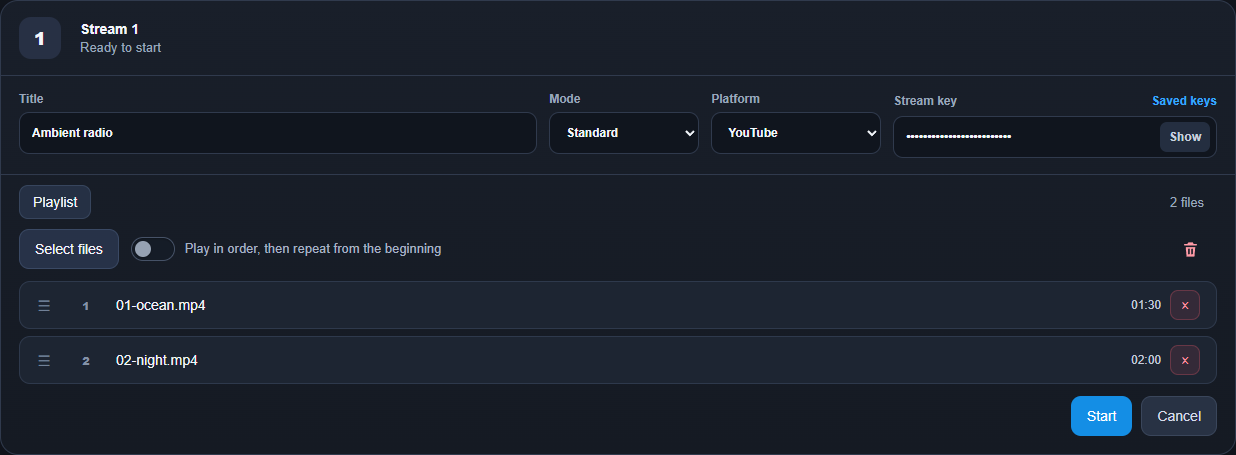
- Open Streams, enter a title, choose a mode and platform, and paste your stream key.
- Click Select files to build your playlist, then Start.
- Check the preview on your platform and click Go live there if required.
Upload a file, then let preparation finish
In Storage, use Upload and select your video or audio. Choose YouTube in the upload settings and a resolution that suits the source. Fill screen may crop edges; Show full video can add black bars. Check the storage forecast, then Start upload. Keep the page open while a local file transfers. Upload from Google Drive is another route: connect Drive, choose files and Start import; that transfer runs in the background. Upload completion and processing completion are different. Wait until the file is ready.
How do I import files from Google Drive? → How large can an uploaded file be? →Mode Standard / AV
Open Streams. Standard uses a single playlist of prepared videos, including their existing sound. Use it for lessons, interviews and a finished programme. AV uses separate Video and Audio lists: a visual loop in one, music or spoken audio in the other. Select both lists before starting. This is useful when replacing music should not require exporting the animation again. Start with Standard if your video already contains everything.
What is the difference between Standard and AV mode? →Playlist
In the newer interface, choose Select files, mark ready files and confirm with Done. The earlier interface uses Select and OK. Arrange the files in playback order. Leave shuffle off for a lesson sequence; use it only when a changing order makes sense. For the first test, select two short files so you can hear a transition and see the end return to the beginning. AV needs the same check for each list.
Can I change a playlist while the stream is live? → What happens when a playlist reaches the end? →Supported streaming platforms
Choose a destination in the dashboard and use the publishing key provided by that platform. Your channel must have live access enabled. The platform controls the event, its visibility and any final Go live action. A plan with several stream slots can run independent broadcasts to different destinations.
- YouTube
- Twitch
- Kick
- Rumble
- DLive
Saved stream keys
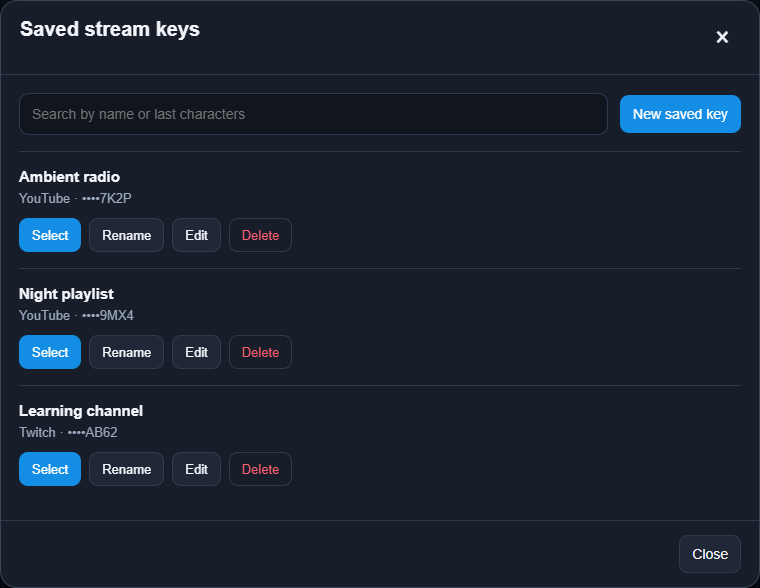
In the Stream key field, open Saved keys. Create a named entry or select an existing one to fill the title, platform and masked key in that stream card. The separate window also lets you rename entries, replace their keys or delete them. Selection does not start a broadcast. Saving is optional; you can paste a key manually each time.
When you save a stream key, its full value is stored in the database in encrypted form. The encryption key is kept separately, outside the database. The list shows only the name, platform and last four characters.
Saving keys is optional: you can enter them manually without saving. Encryption protects stored values, but does not eliminate the risk of exposure if your account, authentication data or our server is compromised. No online storage can guarantee absolute security; save keys only if you accept this risk.
If you suspect exposure, replace the stream key on your streaming platform and update the saved entry. Deleting a saved entry in LoopingStream does not revoke the key on the platform.
Plans
New users receive 7 days from their first sign-in, with 24 hours of streaming in total, 1 GB of storage and one simultaneous stream. No card is required. Use the 24 hours in one continuous stream or across several sessions within those 7 days. Uploading files and time while the stream is stopped do not use the allowance. Starting, reconnecting and restarting a stream do not reset it. Streaming stops when the hours run out or the 7 days end, whichever comes first. Previously issued trials keep their original limits.
Paid plans: no streaming-hour limits
Paid plans have no quota for streaming hours or outgoing traffic during the active plan period. The free trial has a total allowance of 24 streaming hours within 7 days.
Pricing → Can I run several streams or use different platforms at once? → How does automatic renewal work? →Before running a long broadcast
Looping Stream plays prepared files; use a live production tool when you need a camera feed or real-time scene mixing. Start the sender in the dashboard: scheduling an event on a destination platform does not start it automatically. Recovery from temporary connection errors cannot guarantee uninterrupted delivery. Check the platform preview and viewer page, keep your source files, and broadcast only media you have permission to use.
Why isn't my broadcast visible on the platform yet? →