
How to broadcast a recorded podcast on YouTube Live
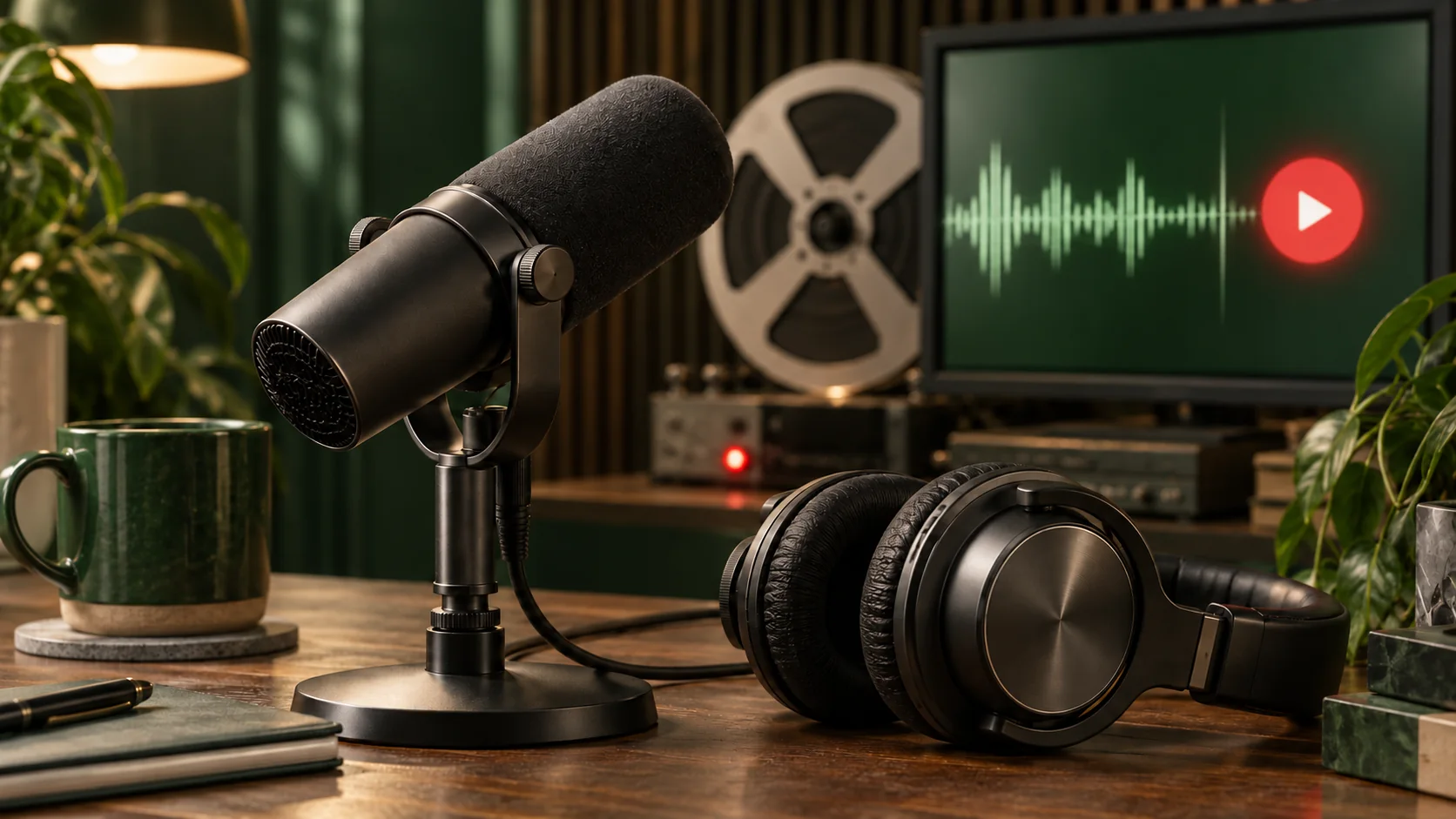
A podcast episode may already be finished when its audience meets. That is the reason to stream a recording: people hear the same passage together, and the host can discuss it in chat. Start with one episode and an end time. A loop of interviews can come later, if listeners actually want it. The recording does the talking; someone still needs to look after the room.
Give the event a purpose
Choose what the broadcast adds to an episode that listeners could play whenever they like. Perhaps the guest will answer questions in chat, or the host will share links when each subject comes up. Write that offer in one sentence. If the only plan is to play the file, say so. A scheduled listening session is enough of a format.
Keep the podcast playlist separate
On YouTube, a podcast is a playlist whose episodes are videos. Broadcasting alone does not create that playlist. Create a podcast.
Treat the live event and podcast release as two tasks. Configure the podcast in YouTube Studio and add episode videos there. Do not promise that a live broadcast will put the show in YouTube Music. Keep clips and promotional extracts outside the collection of full episodes, so someone opening the show can find the conversation they came for.
Publish the episode as a podcast too
In YouTube Studio, use Create → New podcast to create the show. For an existing show, open Content → Podcasts, select it and choose Add videos. You can upload an episode or add an existing video. Keep full episodes in this playlist; use another playlist for clips. A live listening session does not replace this setup. After the session, link viewers to the checked episode page, not an unfinished archive. Create a podcast.
Prepare a file people can listen to
Export a video version of the episode, even if the programme began as audio. A cover image, speaker names and changes at topic boundaries can provide context. Play the beginning, middle and ending with headphones. Listen for a guest who becomes quiet, music that covers speech, or an ending cut off by the export. Keep the source recording and the exported file. Use a copy for the test, and keep its filename distinct from the final episode. If you discover a problem, correct the export before sending invitations. A chat message cannot repair audio that nobody can understand.
Put the recording in the description
Use a title such as “Episode 18 listening session: recorded interview, host in chat.” In the description, identify the recording date and say who will be present. Include the start time with a time zone wherever you announce it. Then run a test using the same file and destination settings. If using LoopingStream, work through the site guide before announcing the event.
Host the chat without competing with the audio
Prepare three or four messages with episode links, guest details and references. Post them when the relevant discussion arrives. Ask a question that people can answer without pausing the programme. A moderator can collect questions for the guest while another person watches the broadcast. Avoid promising spoken answers inside a file that has already been recorded. Make the difference clear before the questions begin.
Decide what happens after the episode
End a single-episode event when the programme finishes, unless a repeat was announced. Review the chat and note questions that deserve a follow-up. Link the episode's usual listening page from the event description. If you publish another version, explain which link is the episode and which is the listening session. Two pages with no explanation make a listener do the sorting for you.
Questions
Should I keep the podcast running all day?
Start with one session. Longer schedules need a reason for listeners to return, a plan for repeated episodes and someone responsible for chat. Compare the results before expanding.
Can the guest take part if the interview is recorded?
Yes, if the guest joins the chat. State that arrangement in the announcement and confirm their availability. Do not describe the recorded interview as a conversation happening in real time.
Sources
Related guides
- How to Use Looping Stream: Upload a Video and Start on YouTube
- How to moderate YouTube live chat during a prerecorded stream
- How to plan a YouTube live playlist people can join halfway through
Try your first playlist
Upload a short file, connect your YouTube event and check the watch page before building a longer programme.
Open Looping Stream