
YouTube live DVR and latency: settings for a prerecorded program
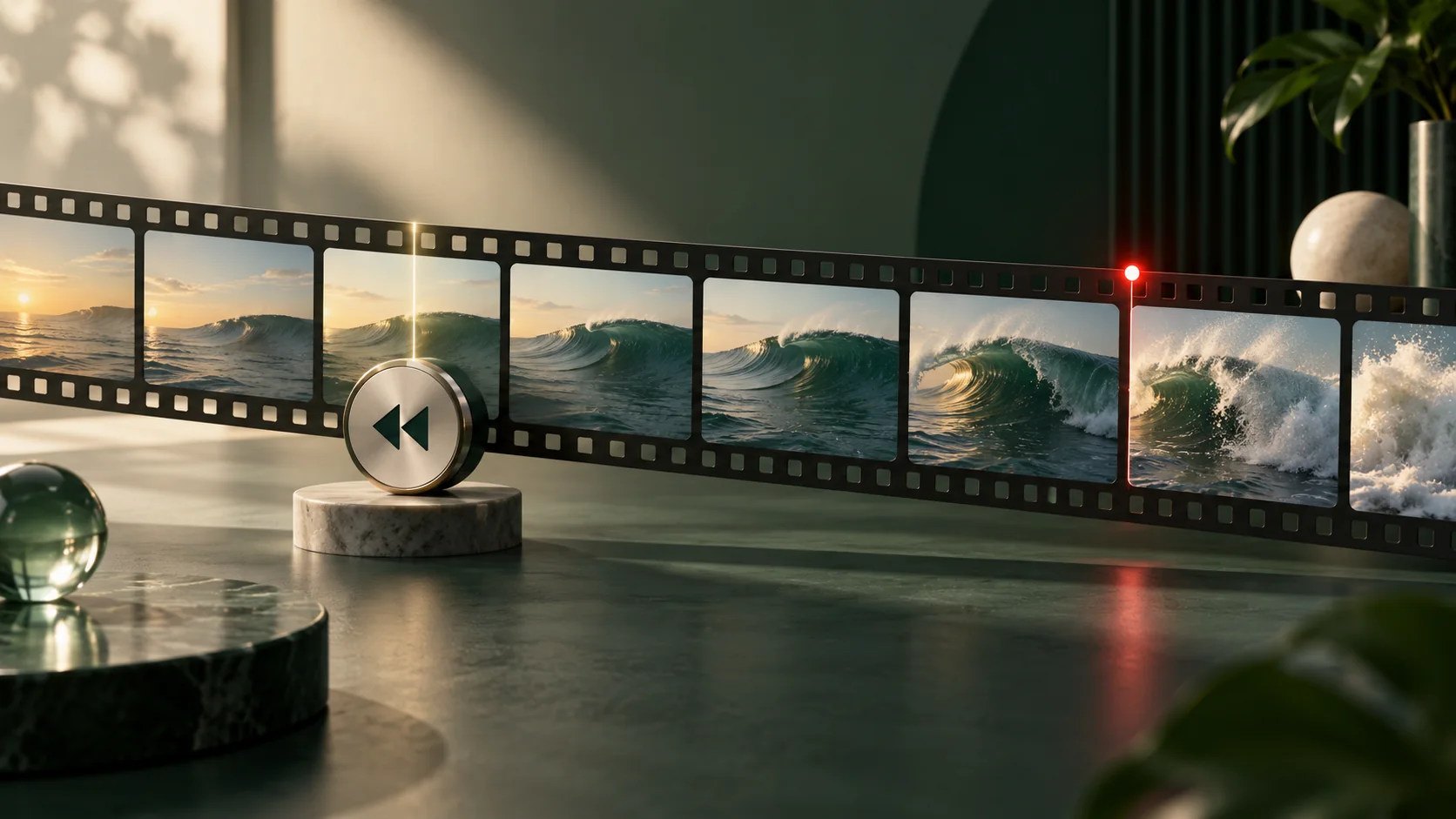
Two viewers can watch the same live program at different points. One arrived late and rewound; another is following the current picture. Before asking them a question about the screen, decide how the program should work. DVR controls navigation. Latency concerns the delay in delivery.
Start with the viewer’s task
YouTube DVR lets viewers pause, rewind and resume during a live stream. Enable DVR.
For a recorded lesson, that can be useful: someone pauses on a diagram or returns to an instruction. For a background program, viewers may prefer simply to join whatever is playing now. Think about the task before switching features on or off.
Imagine a forty-minute editing workshop. A viewer arrives ten minutes late. If following the steps matters more than watching together, give that person a way to catch up and explain where the separate lesson will be available.
Pick latency for the conversation you will have
YouTube recommends Normal latency for streams without interaction. Lower latency can increase buffering. Understand latency.
A playlist of nature footage does not need a quick response to a host. Normal is a reasonable starting point for that program. For a recorded presentation with someone answering in chat, consider whether replies refer to the current frame or merely to the topic.
Low and Ultra-low are options to evaluate when timing matters. Choose them because you need interaction, then test. A prerecorded file does not require the shortest delay just because the platform marks its transmission as live.
A starting configuration for each format
For DVR, open YouTube Studio → Create → Go live → Stream or Manage → Stream settings → Additional settings → Enable DVR. Review the latency setting before going live. These are starting choices to test, not a promise of identical delay on every device. Enable DVR.
| Programme | Starting choice |
|---|---|
| Background video or music, no interaction | Normal latency; decide separately whether rewind helps. |
| Lesson with answers about the current slide | Test Low latency; enable DVR if catching up matters. |
| A timed exchange needing the shortest delay | Evaluate Ultra-low; expect less buffering tolerance. |
| 4K programme | Normal latency; Low and Ultra-low do not support 4K. |
Keep the picture and chat in context
If viewers can rewind, “look at this button now” can refer to different images. In chat, name the slide or action instead: “On the export-settings slide, select the output folder.” That answer remains understandable when someone is behind the current program.
Ask viewers to identify the step they are watching. If you invite a timed discussion, explain when to return to the live position. The chat team should not assume that every question concerns the frame currently visible in its own player.
YouTube’s Low and Ultra-low latency modes do not support 4K. Understand latency.
Do not use DVR as a recording plan
YouTube says DVR can be limited or unavailable on streams longer than 12 hours. Enable DVR.
Keep the original video files and plan separately for an archive. A viewer’s ability to rewind an active stream is not proof that you will have a complete replay afterward. Review the archive requirements before choosing a continuous event.
Test from the audience side
Use a test event and a second device. Try joining midway, pausing for several minutes, returning to the current position and reading chat while watching an earlier section. Also try the device type your audience uses most.
Note the latency choice, DVR setting, video preset, device and observed behavior. Change one setting, then repeat the same tasks. Do not compare two tests with different files and networks and attribute every difference to latency.
Make changes with a fresh viewer session
DVR changes made during a YouTube stream apply to viewers who start watching afterward. Enable DVR.
An already-open player can therefore be a poor check of your new setting. Start a fresh viewing session for the test and ask a colleague to check independently. Record the result before announcing that a problem has been fixed.
Keep a short note explaining your chosen setup: who the program serves, whether viewers may rewind and how chat questions are handled. Review it when the format changes. The settings for a lesson need not be the settings for a music stream.
A camera-stream example: missing earlier footage
On Reddit (2025-05-06), a camera-stream operator could not find an earlier event in the available playback history. Reddit discussion.
DVR is a navigation feature, and YouTube says it can be limited on streams exceeding twelve hours. The post alone does not establish where the missing footage went. If retaining every hour matters, record independently. Test access to yesterday’s recording, not just whether today’s live player can rewind. Enable DVR.
Questions
Does enabling DVR guarantee a saved replay?
No. Treat rewind during the event and availability after the event as separate questions. Keep your source files, follow YouTube’s archive guidance and verify the resulting recording before sharing it.
Will a latency mode give everyone the same delay?
Do not promise a fixed delay to every viewer. Test the actual event on representative devices and connections. Use timing measurements to guide your setup, not as a universal guarantee.
What should I try first for a prerecorded stream?
For a program without audience interaction, start by evaluating Normal latency. Decide about DVR from the content: a lesson may benefit from review, while a timed group discussion requires explaining how to follow the current position.
Sources
Related guides
- How to Use Looping Stream: Upload a Video and Start on YouTube
- YouTube Live archives and the 12-hour limit: plan before streaming
- How to moderate YouTube live chat during a prerecorded stream
Try your first playlist
Upload a short file, connect your YouTube event and check the watch page before building a longer programme.
Open Looping Stream